Resources
User Guide
Everything you need to register datasets, explore data, and request access on the Thai Omics Catalog.
What is the Thai Omics Catalog?
The Thai Omics Catalog is a national platform to discover and share omics research datasets across Thailand, run by the Bioinformatics Academic Association of Thailand (BAT). Researchers register their datasets, explore datasets from other groups, and request access to data they want to reuse.
- 1
Discover
Browse a searchable catalog of genomics, transcriptomics, proteomics and other omics datasets contributed by Thai research groups.
- 2
Share
Register your own datasets with rich metadata so other researchers can find and cite your work.
- 3
Request & collaborate
Ask dataset owners for access through a tracked, auditable request workflow.
Sign in and set up your profile
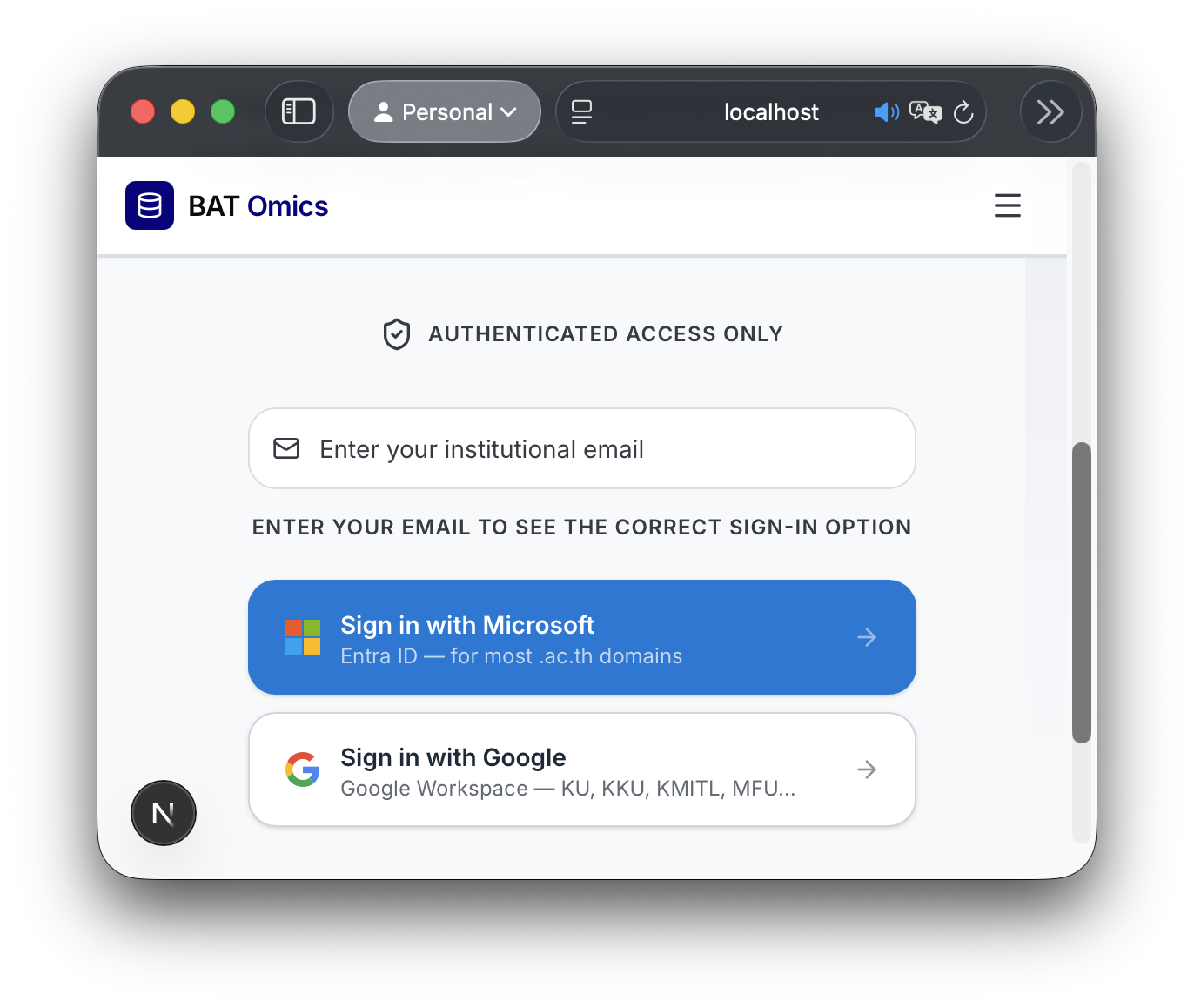
Sign in with your organizational email using Microsoft (primary) or Google. Personal Gmail/Outlook accounts are not accepted — access is limited to member institutions.
- 1
Sign in
Use the Sign In button and choose Microsoft or Google with your university/institute email.
- 2
Complete your profile
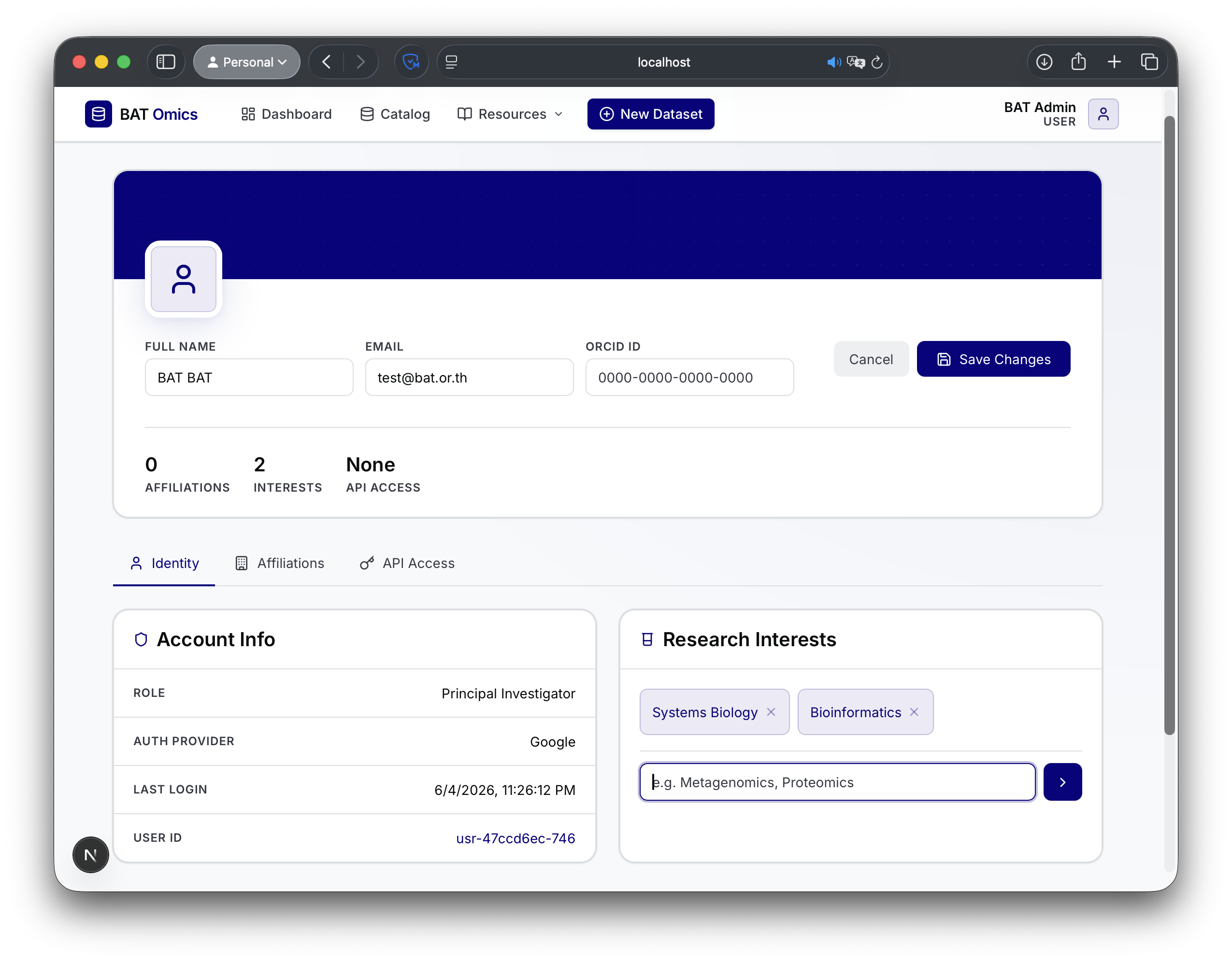
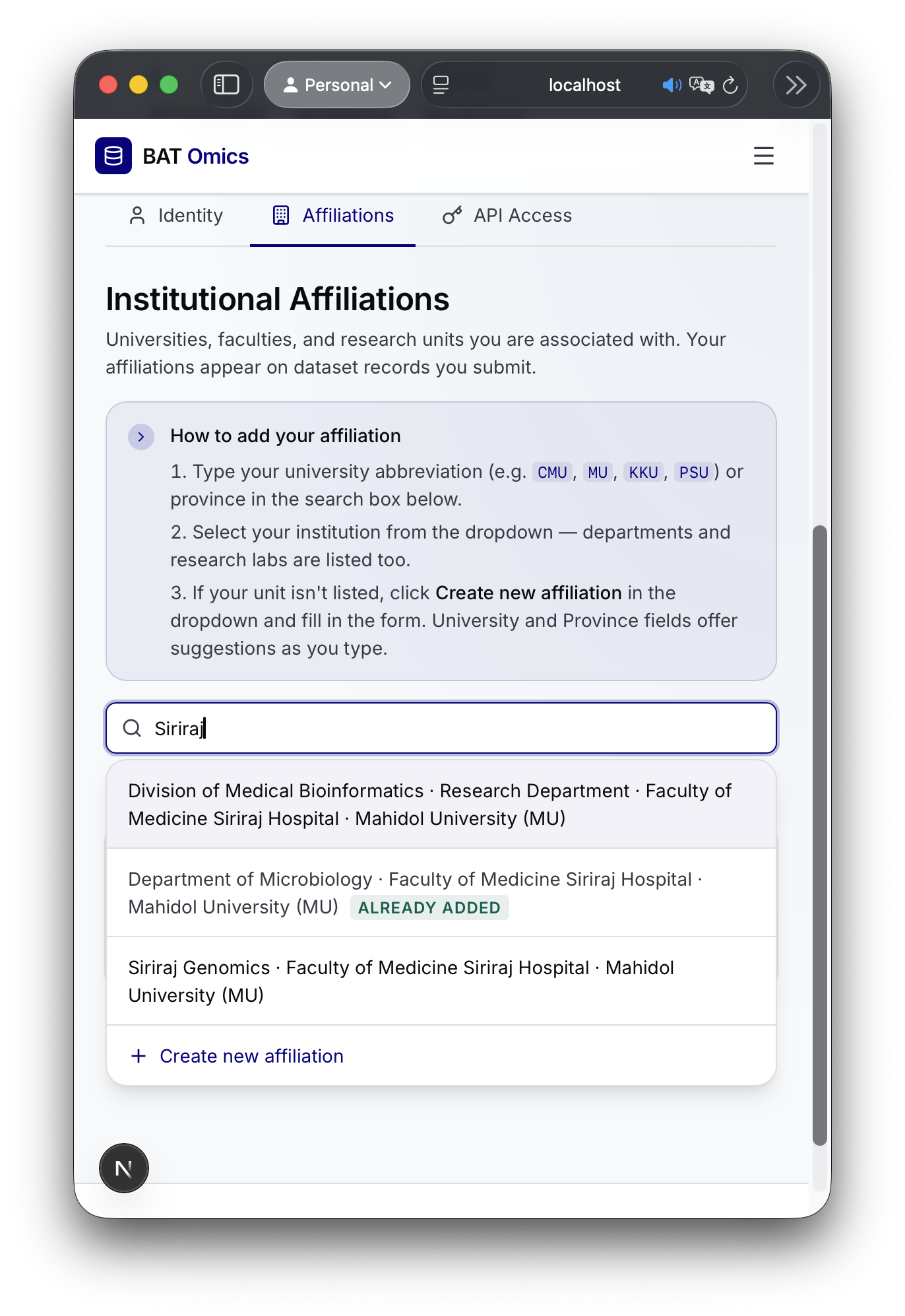
Open Profile Settings to add your name and affiliation (institute, faculty, department).
Register a new dataset
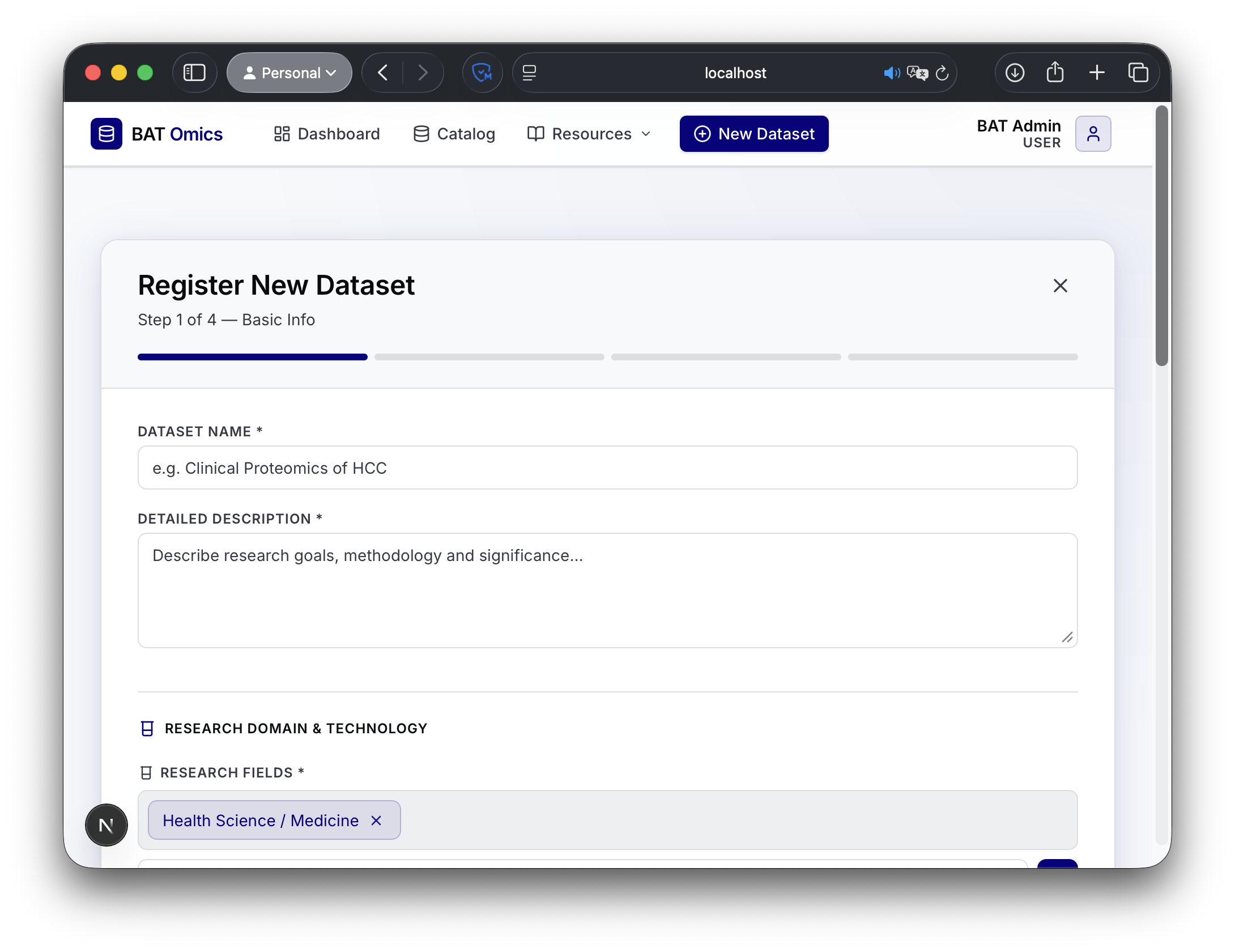
Researchers and PIs register datasets through a four-section form. Click + New Dataset in the navigation bar to begin. On submit, your dataset receives a permanent ID like BATD000123.
- 1
Click + New Dataset in the navigation bar
The registration form opens. Work through each section in order and press Update Record when all four are complete.
- 2
Dataset description and data controllers
Enter the dataset title, a plain-language description, the owning organization, and contact details for the data controller responsible for access decisions.
- 3
Publication related to the dataset
Type a DOI and press Lookup to auto-fill the citation. Add as many linked publications as needed. Leave blank if the dataset is not yet published.
- 4
Experimental study parameters
Describe the biological scope of the study: organism(s), experimental conditions, sample origins (provinces), timepoints, measurement assays, sequencing or analysis platforms, and the number of samples. Use the experimental design matrix to break down sample counts per condition.
- 5
Collection parameters, survey / CRF, and disclosure
Record the omics-level parameters collected, attach any survey instrument or case record form (CRF) file, and set the disclosure status — whether the dataset appears publicly in the catalog or remains hidden until you choose to share it.
Explore datasets
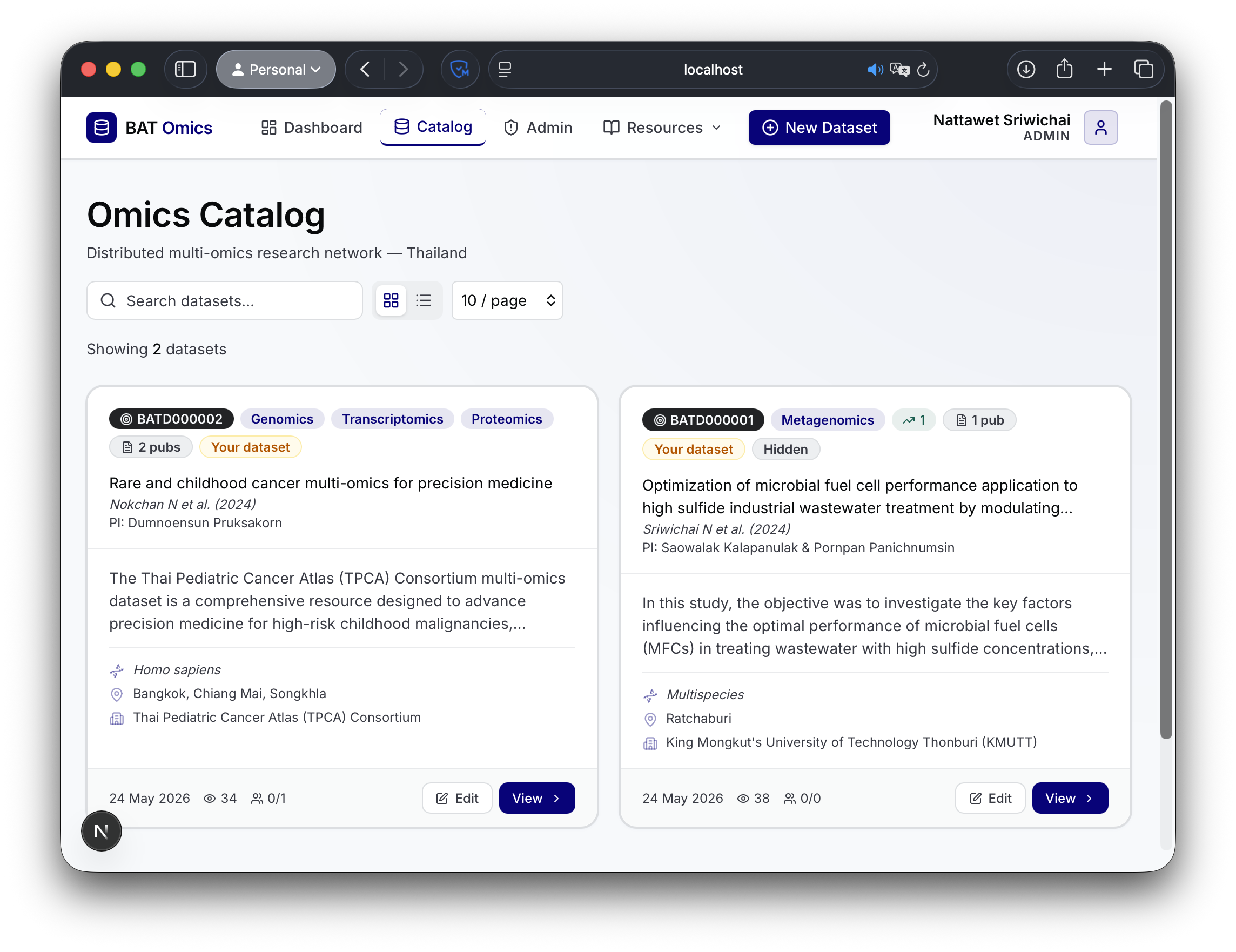
The Catalog is where you find datasets. Search by keyword and narrow results with filters, then open any dataset to see its full metadata.
- 1
Search
Use the search box to match titles, organisms and descriptions.
- 2
Filter
Narrow by omics level and organism.

- 3
Switch views
Toggle between grid and table layouts to suit how you scan results.
- 4
Open a dataset
Click a dataset to see samples, publications, contacts and the access status.
- 5
See the big picture
The Dashboard and Thailand map show where datasets come from across the country.
Request access to a dataset
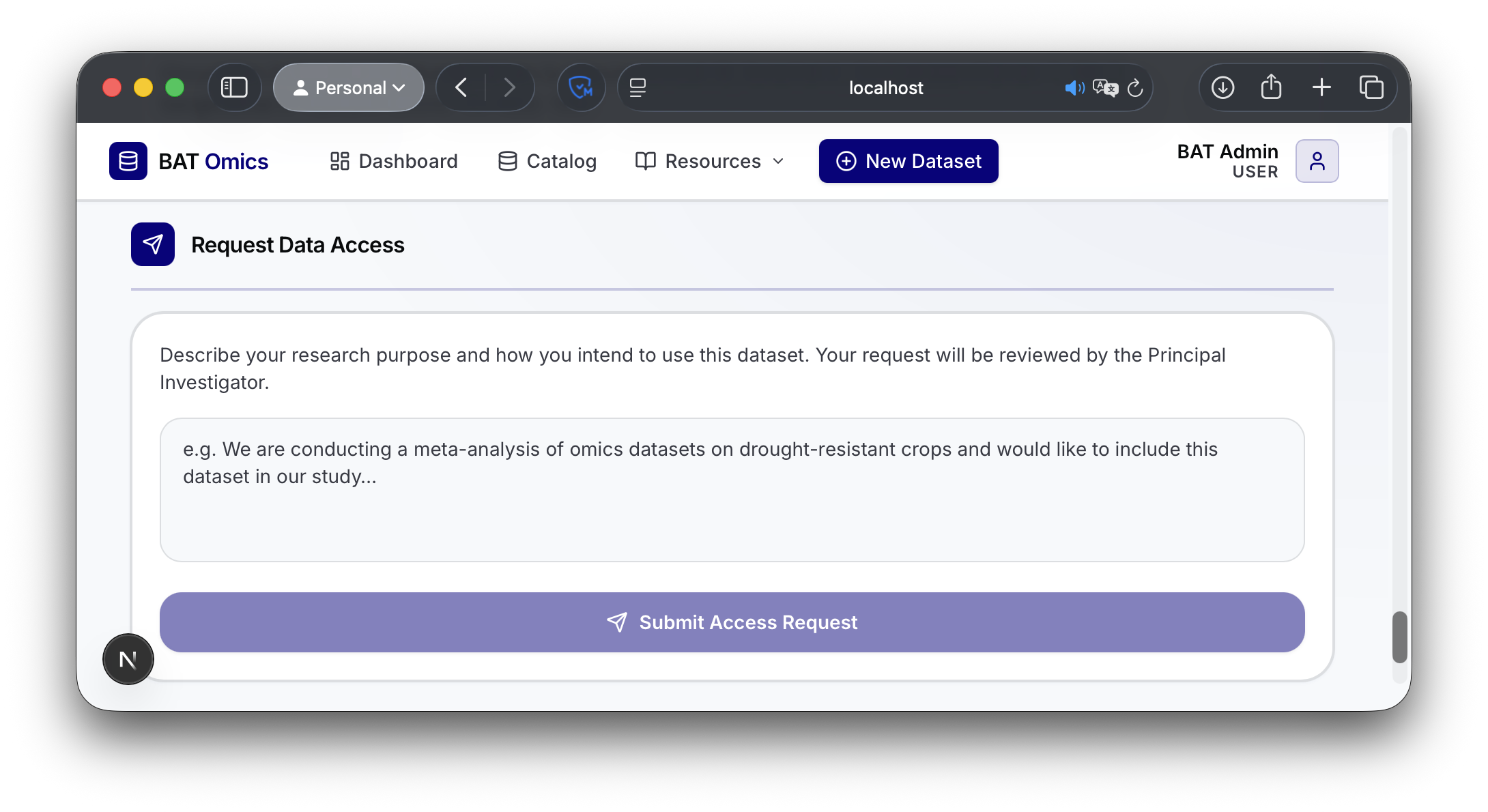
If a dataset is access-controlled, open its detail page and click Request Access. Write a short message describing your intended use, then submit. Your request starts in the pending state.
- 1
Open the dataset
Find the dataset in the Catalog and open its detail page.
- 2
Click Request Access
Fill in a brief message stating who you are and how you plan to use the data.
- 3
Submit
The request is recorded and the owner is notified. Track its status from the dataset and your activity.
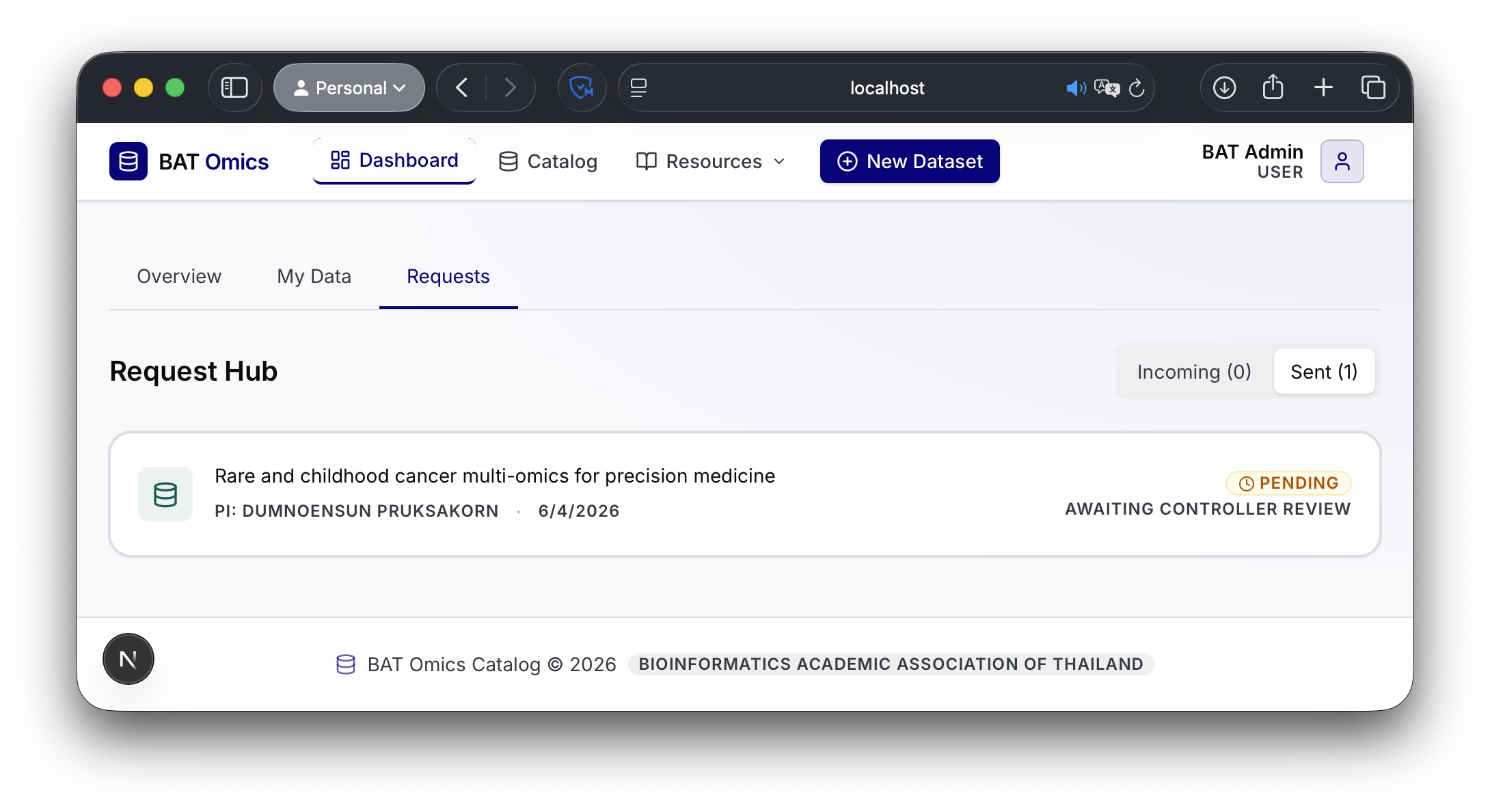
What happens after you request
Every request follows the same tracked lifecycle. You and the dataset owner are kept informed by email at each step. Click a stage below to see the details.
Your request is saved with status pending, and you receive a confirmation email that the request was submitted.